Aug 1, 2026
EasyAccrue dates explained
EasyAccrue dates explained


Understanding Dates in EasyAccrue
One of the most common questions we get from new EasyAccrue users is about dates. Each adjustment in EasyAccrue has four dates, and understanding how they work together is the key to getting accurate accruals and prepayments every month.
Here's a simple guide to what each date means and why it matters.
The Four Dates
1. Entry Start Date
This is the first month the adjustment will appear in your EasyAccrue periods. Think of it as the date you want EasyAccrue to start tracking this adjustment.
A few rules to remember:
- It must be the first day of a month
- It must fall within your current business adjustment period
- It must be before the Entry End Date
2. Entry End Date
This is the last month the adjustment will appear in your EasyAccrue periods. Once this date is reached, the adjustment will no longer show up in future periods.
A few rules to remember:
- It must be the last day of a month
- It must fall within your current business adjustment period
- It must be after the Entry Start Date
3. Recognised From Date
This is where the calculation actually begins. The Recognised From Date tells EasyAccrue when the expense or income starts being recognised, and is used to calculate how much should be spread to each period.
It must be the first day of a month.
4. Recognised To Date
This is where the calculation ends. Together with the Recognised From Date, it defines the full recognition period and drives how the adjustment is spread across months.
It must be the last day of a month.
How the Four Dates Work Together
The Recognised From and To Dates define the total period the adjustment covers and drive the monthly calculation amounts.
The Entry Start and End Dates define which months EasyAccrue will actually show and post the adjustment for.
For prepayments, the Entry End Date and Recognised To Date will almost always be exactly the same. This is because once the recognised period ends, the prepayment balance is fully released and the remaining amount is zero. There is nothing left to post after that point, so the entry naturally ends at the same time.
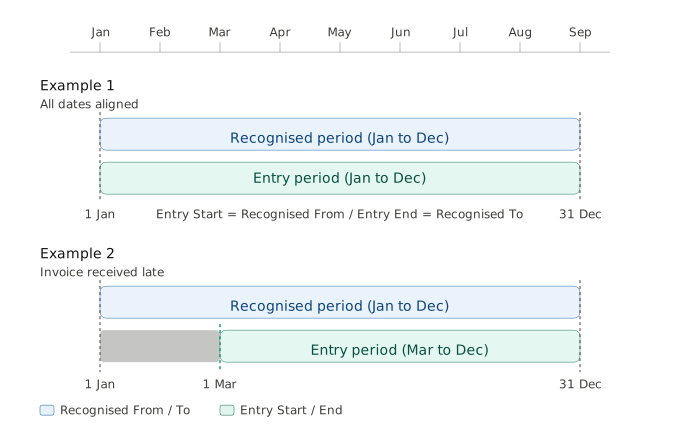
Example 1: Dates are all the same
You pay annual insurance of €12,000 covering 1st January 2026 to 31st December 2026.
- Recognised From Date: 1st January 2026
- Recognised To Date: 31st December 2026
- Entry Start Date: 1st January 2026
- Entry End Date: 31st December 2026
EasyAccrue will calculate €1,000 per month and post the journal automatically each month end.
Example 2: Entry Start Date is later than the Recognised From Date
You receive an invoice in March 2026 for annual insurance covering 1st January 2026 to 31st December 2026. The total cost is €12,000.
Even though the invoice arrives in March, the expense relates to the full year from January. You want EasyAccrue to recognise the full period correctly but only start posting from March 2026 onwards, as the January and February accounts have already been completed.
- Recognised From Date: 1st January 2026
- Recognised To Date: 31st December 2026
- Entry Start Date: 1st March 2026
- Entry End Date: 31st December 2026
EasyAccrue uses the full Recognised From and To Dates to calculate the correct monthly amount of €1,000. However it will only start posting from March 2026 onwards. The January and February periods are not affected as those accounts have already been completed.
This is a common scenario when an invoice arrives late but relates to a period that has already partly passed.